TD Extend or Extension in DOP Finacle

Uncategorized
TD account is having option at the time of opening account as “auto exend”. Whenever we select no at the opening of time and later customer wants to extend further then the command HTDREN is used for Extension. HTDREN stands for Tern Deposit Renewal. The A/C can be extended after completion of 1/2/3/5 year and within 1 year completion of 1/2/3/5 year. The following step are taken for extension.
  • Menu Shortcut – HTDREN > GO
  • The following screen will appear.

  • Function – R-Renewal
  • A/C ID – TD A/C
  • GO
  • The following Screen appears


  • Effective Open Date – Maturity Date
  • Renewal Option – P- Principal Only
  • Calculate Overdue Int – No
  • Print Renewal Confirmation – Immediate/Later
  • Click Submit Button
  • The Result Screen shows the account renewal successfully.

Procedure for Uploading SO Cheques at HO:

Uncategorized

  • On receipt of Physical Cheques from SO alongwith list, HO will tally cheques with list.
  • Invoke HCLUPLD from supervisor menu
  • Copy the .txt file received from Sub Office to the required location
Then enter the following details as shown
Enter the Report To column as “Supervisor”
Enter the zone date ________________
Enter the zone code as  “MICROW”
Select the FIle location path as “Local file path” as shown in the below figure


Then click on Submit
Then the system will ask the upload file path select the path where the file saved in the step HTRFTOPC as shown in the below figure


Then click on GO then the system will display the message “File uploaded successfully”

Repeat the same procedure for all the SOs

Step by Step Procedure to Active Post Office Savings Bank (POSB) Internet Banking in DOP Finacle

Uncategorized

DOP Finacle Menu : CMRC

by using CMRC menu, the Net Banking of the DOP Customer may be enabled and verified by the Supervisor. On successful activation of Internet Banking,

  • An Activation message will be received from DOP with in 24 hours or take little more based on server response.
  • Customer can register Internet Banking by clicking on New User.

Customer ID is a CIF ID of the Customer


डाकघर के खाते को IPPB के खाते से कैसे जोड़ें ??? (Link/De link With POSB to IPPB)

Uncategorized
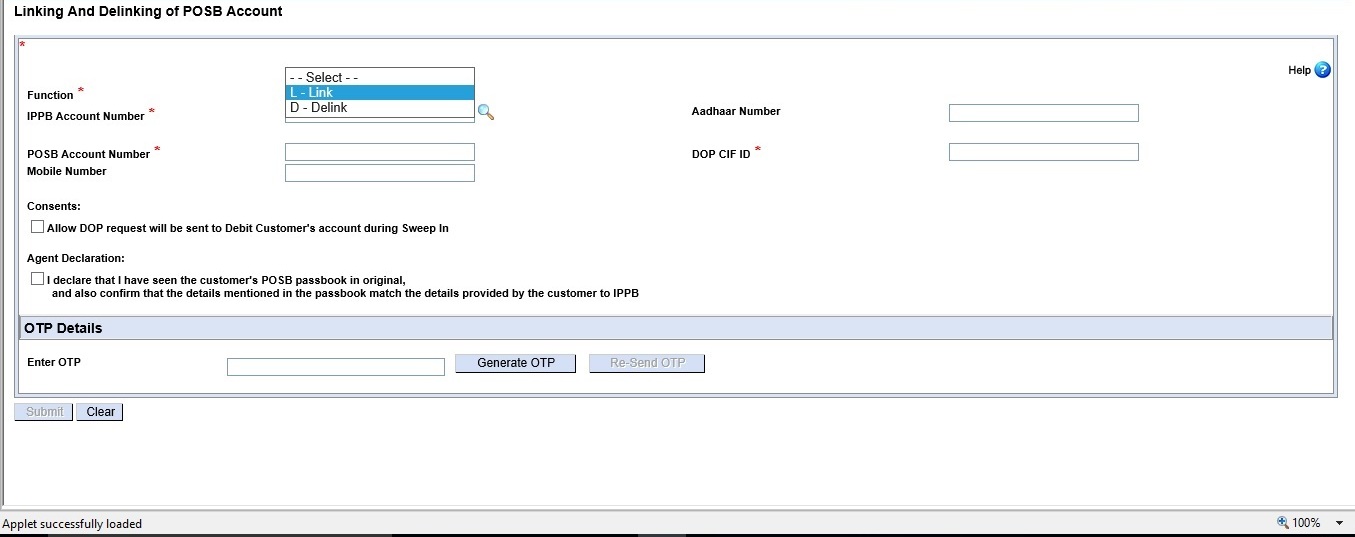
If the POSB account is not linked to IPPB account while opening account, it can be linked subsequently on customer request. Following is the procedure for linking POSB account with IPPB account

Finacle command used for linking is CLDPOSB
Same command is also used to delink account
Following screen will appear

Select Function – Link
Enter IPPB Account Number. On clicking tab details like Aadhaar number, Name of customer and mobile number will automatically come.
Enter POSB Account number and DOP CIF ID
Select consent and Agent Declaration
Click on Generate OTP
Enter six digit OTP and press tab to enable Validate OTP.
On clicking Validate, message for successful linking will appear

TIPM Overview – Transaction Inquiry in Post Migration in DOP Finacle

Uncategorized

Transaction inquiry of Customer Accounts in before Migration

DOP Finacle Menu

TIPM – Transaction Inquiry in Finacle – Post Migration

The above Finacle Menu is Used to view the ledger copy of Customer Accounts before migration. Ledger Copy of After migration is not possible using the TIPM Menu.
Using the above menu we can view the post migration transactions / Print the Post Migration Transaction. There are two options are available in the above menu.
  • Inquire Account Transactions
  • Ad-hoc Statement Printing


To print the Old Ledger in DOP Finacle

  • Invoke Menu TIPM 
  • Select Option >


Inquire Account Transactions to View Old Ledger
Ad hoc Statement Printing to Print Old Ledger


  • Enter Account Number. 
  • Enter Start and End date.

Complete Despatch Process SAP IPVS

Uncategorized

                   SAP-IPVS


1. On Desktop double click on SAP Logon.
2. Enter the User Name and Password and click on Enter button.
3. Enter the T-Code ‘ZDOP_MAIN’ or For IPVS Module enter the T-code ‘zmoipvs’.


Bag Receive:
1. Go IPVS main screen click on Bag Receive.
2. Enter the facility id .
3. select the schedule from box or click on F4 and click on fetch button. You can select the    multiple schedules from arrow button.
4. Scan the Bag ID and weight click on enter after that click on Bag Receive.


Bag Open:
1. Go IPVS main screen click on Bag Open.
2.  Enter the facility id.
3. Enter the Bag ID or Click on Bag Ready to open.
4. Scan the Bags and click on submit.

Bag Close:
1. Go IPVS main screen click on Bag close.
2. Enter the facility id.
3. Select the destination and bag type.
4. Click on next button.
5. Scan the Articles and click on the finish button.
6. Enter the Bag ID and click on close.

Bag Dispatch:
1. Go IPVS main screen click on Bag Dispatch.
2.  Enter the facility id.
3. Enter the Schedule ID, click on box or F4.
4. Scan the Bag ID click on Enter.
5. Click on Dispatch.

Cancel Dispatch:
1. Go IPVS main screen click on Bag Dispatch Cancel.
2.  Enter the facility id.
3. Enter the Bag ID click on enter and give the cancel reason.
4. Click on Apply.

Bag Reopen:
1. Go IPVS main screen click on Bag Reopen.
2. Enter the facility id.
3. Scan the Bag ID.
4. Enter the Reopen Reason, And if you want add or delete articles to that bag.

Insured Aricle Verification:
1. This is the supervisor transaction.
2.  Go IPVS main screen click on Insured Article Verification.
3.  Enter the facility id.
4. Perform both Receive verification and close verification.
5. Click on Approve Button.

Insured Bag Verification:
1. This is the supervisor transaction.
2. Go IPVS main screen click on Insured Bag Verification.
3. Select the radio button pending for verification.
4. select the bag id and click on approve button.

Deposit Bag Close:
1. Go IPVS main screen click on Deposit Bag Close.
2. Enter the facility id.
3. Select from set and To set and click on next button.
4. Scan the Articles and click on Finish Button.

Dispatch Bulk Addressee Bag:
1. Go IPVS main screen click on Bag Close.
2. Select the estination and Bag type.
3. Select the customer from the drop down.
4. Go IPVS main screen click on Dispatch Bulk Addressee Bag.
5.Enter the Bag ID and Bag weight, Select the Schedule ID.
6. Click on Dispatch.

Confirm Bulk Addressee Delivery:
1. Go IPVS main screen click on Confirm Bulk Addressee Delivery.
2. Enter the Bag ID.
3. Click on submit.

Schedule Creation Or DMSL(Due Mail Sort List) Creation
1. Go to TMT Server(172.18.128.96).
2. Enter the User name and password.
3. Enter the T-Code NWBC and click on enter.
4. Click on Transportation Manager and after that click on master data.
5. Click on Create Carrier Schedule.
6. Enter the schedule or press F4.
7.Enter the Schedule type, discription, Valid from and Valid To.
8. For MMS Schedule carrier data and payment post office is not required except MMS you have to enter these fields for remaining schedules.
9. Create the Stop Sequence and enter the transit duration, Length of stay.
10. After that Click on Create.
11. Select the Days and Departure time.
12. Select the first row and click on the generate departures for validity period.
13. Click on Save.
14. Go to  ECT Server(172.18.128.90).
15. Enter the T-Code ‘zmoschdwnld’ for download the schedule.
16. Enter the Schedule created in TMT server and execute.
17. Go IPVS main screen Click on Dispatch Schedules.
18. Maintain your Schedule.
19. Select the Bag type and click on Save.

Bills Paid/ Office Expenses in F and A in CSI,Bills Paid/ Office Expenses in SAP in CSI in

Uncategorized

LOGIN TO SAP WITH TREASURER USER ID AND PASSWORD


OFFICE Expenses /Bills Paid in SAP/F and A


ENTER  T CODE “F-02”


FILL ALL DETAILS


Document Date……………………Today’s Date


Posting Date……………………….Today’s Date

Type …………………………………..SK

(SK…………………For cash Document)

Period …………………………………11………………(April =1 then February=11)

Company Code ………………….DOPI

Currency…………………………….INR

Pkey…………………………………..40

Account………………………GL Code of Office Expenses i.e. 3020631300


After Filling All the Details the Screen will be as Above

Then Press Enter Key……………

Enter Amount and Enter Tax Code “V0”

As Below…


Click on More Tab/Button

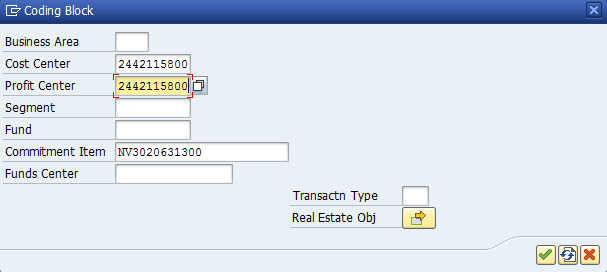
Fill cost Center and Profit Center of our Office….

Click on Continue Button…….


Add caption


Enter Pkey…………………………………..50


Account………………………GL Code of DOP CASH i.e.4867100010

Then Press Enter Key……………..

Enter Amount……………………


Click on More Tab/Button


Fill cost Center and Profit Center of our Office….


Click on Continue Button…….


Go to Document in Menu Bar…….

Click on Simulate option………………..

Or Press Shift+F9 Key………………………..

To View Check the Entries…..


Go to Document in Menu Bar…….


Click on Post option………………..


Or Press Control+S Key………………………..

Document Number Will be Generated as Shown in Below Screen…………


"ZRFBL3N" View Cash Balance Report in SAP CSI

Uncategorized
For Displaying the Cash Balance of Treasurer in SAP “ZRFBL3N” T Code is used. It will show all the Receipts and Payments done with Treasurer related to only Cash. The GL Code for Cash Balance Report is 4867100010 (DOP Cash)

Login To SAP

ENTER T Code “ZRFBL3N”

Fill All the Details As Shown in Below and Click on Execute Button

a.Enter Gl account of DOP cash
b.Enter the Profit center of your office
c.Select date
d.Select execution button

It Will Display Cash Balance GL Report

NSS 87/92 CLOSURE IN DOP FINACLE

Uncategorized

All NSS Accounts are by Default Frozen Accounts.

1.Invoke HAFSM menu to unfreeze the account
2.Enter A/C ID
3.Function – Unfreeze
4.Click on GO(F4)
5.Select the Account ID
6.Click on SUBMIT(F10)
7.Verify the same in the same menu in supervisor login.

Closure(With 15H/15G)

Step1:

1.Invoke CASBAM menu
2.Function – Modify
3.Enter A/C ID
4.Click on GO(F4)
5.Select Form 15G/15H submitted as YES
6.Enter Free Code 5 as 15H/15G
7.Click on SUBMIT(F10)
8.Verify the transaction in the same menu in supervisor login.

Step2:

1.Invoke CMRC menu
2.Function – Modify
3.Enter CIF ID of the Customer
4.Click on GO(F4)
5.Enter Tax Deducted At Source Table Code as NOTAX
6.Click on SUBMIT(F10)
7.Verify the same in the same menu in supervisor login.

Step3:

1.Invoke HCAAC menu
2.Function – Close
3.Enter the A/C number
4.Select the transaction type as Cash/Transfer
5.Click on GO(F4)
6.Go through A/C information and Closure tabs
7.Enter the appropriate closure reason code in Closure tab
8.Click on SUBMIT(F10)
9.Verify the closure in supervisor login using the same menu.

Closure(Without 15H/15G)

1.Invoke HCAAC menu
2.Function – Close
3.Enter the A/C number
4.Select the transaction type as Cash/Transfer
5.Click on GO(F4)
6.Go through A/C information and Closure tabs
7.Enter the appropriate closure reason code in Closure tab
8.Click on SUBMIT(F10)
9.Verify the closure in supervisor login using the same menu

Note: For Closure (Without 15H Form), System Will Automatically deduct the TAX.