How to login to the India Post System (PC) using CSI Employee lD [Active Directory Rollout]

Uncategorized
Connect DOP PC with India Post Domain

1. Open Control Panel and click on User Accounts
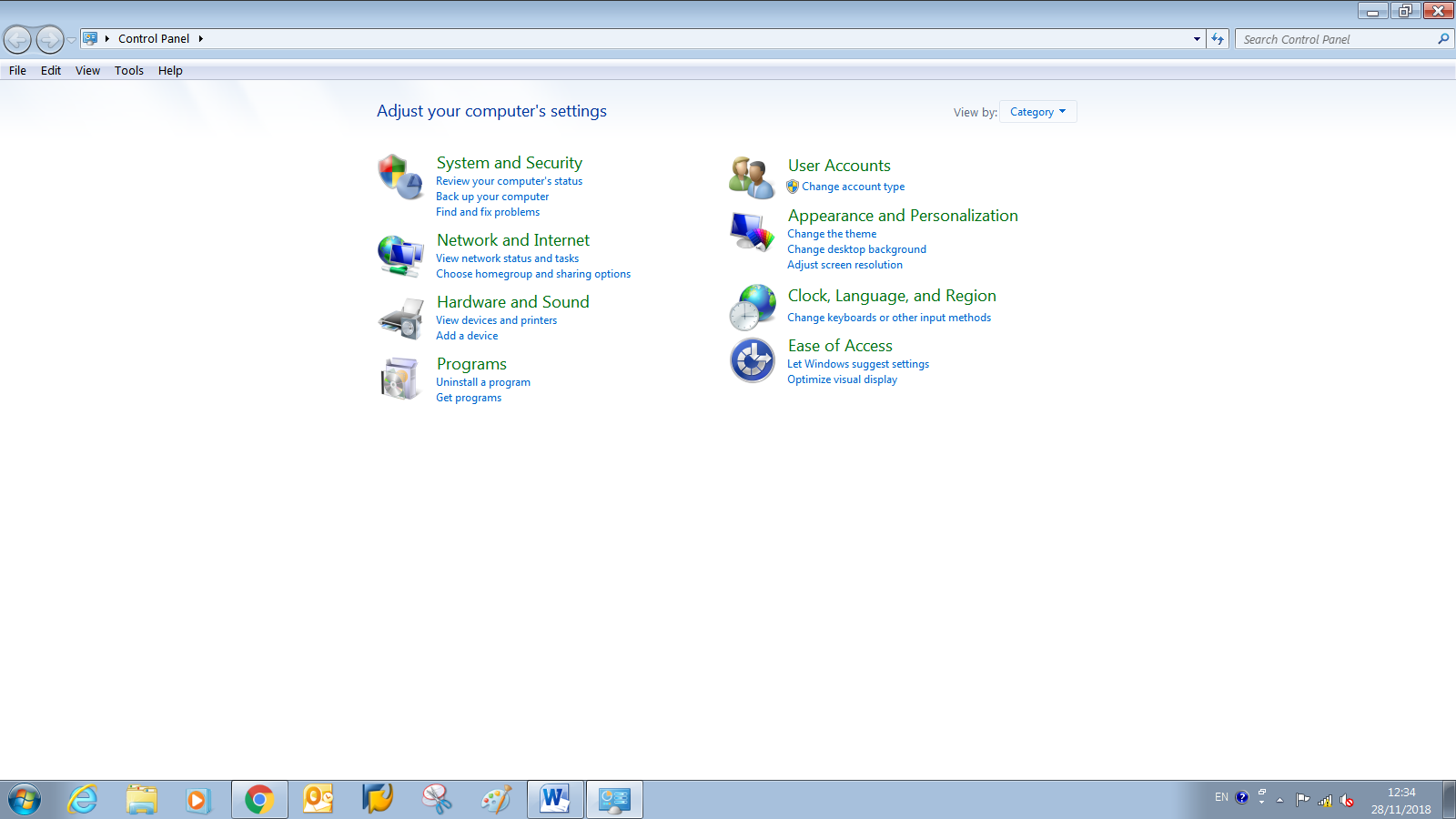

2. Again click on  User Accounts 
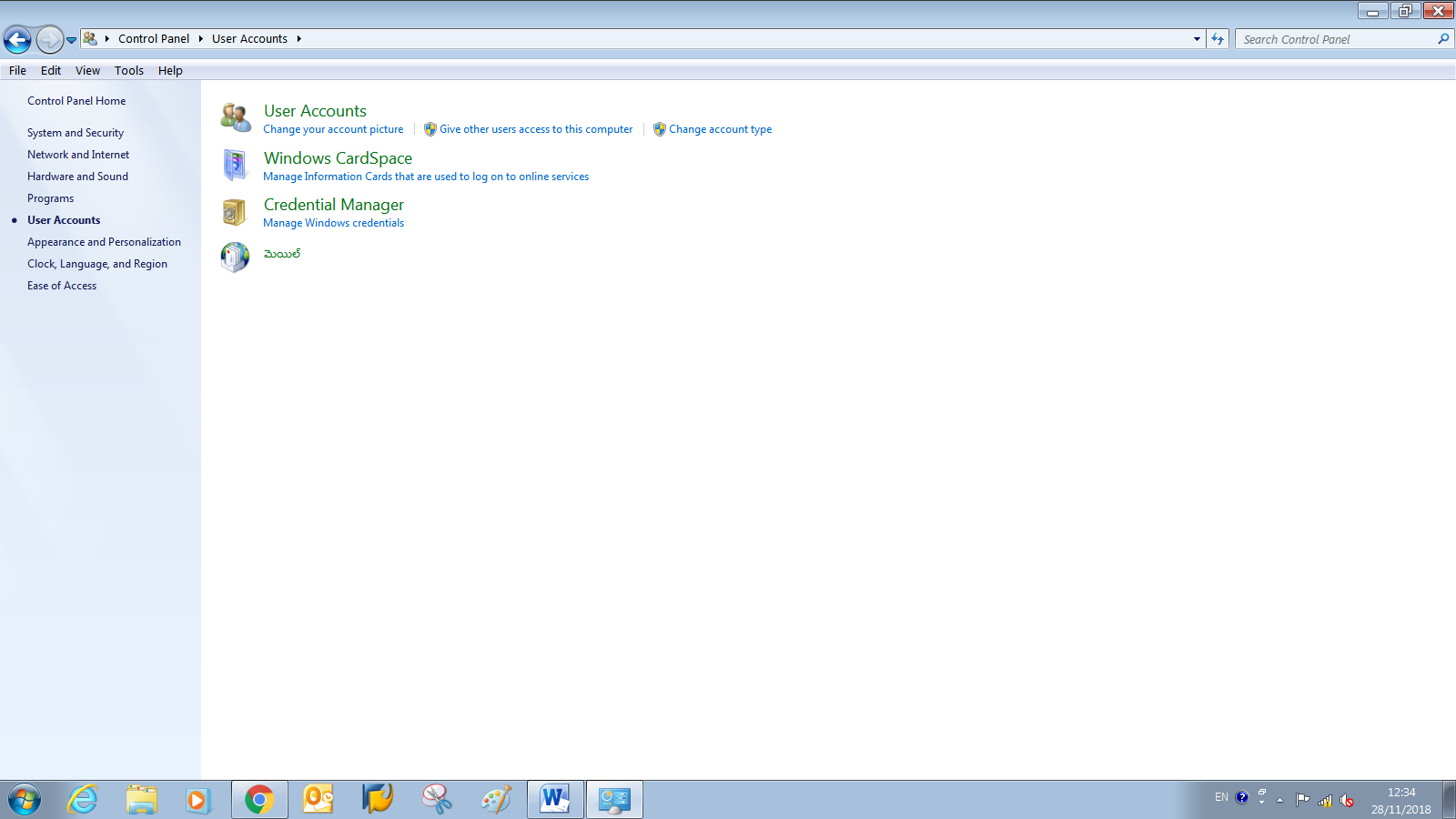
3. Manager User Accounts
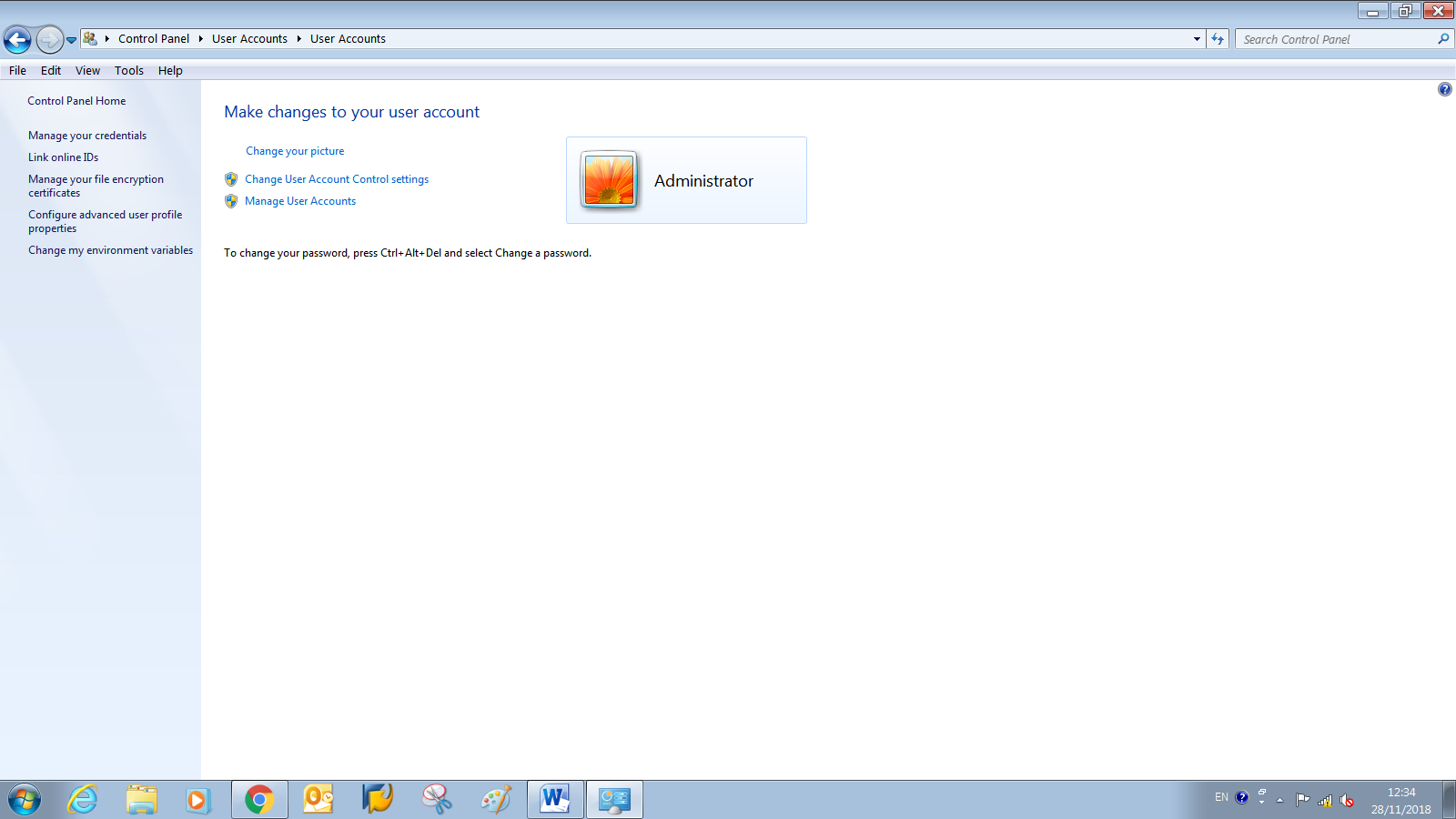
4. Click on Add
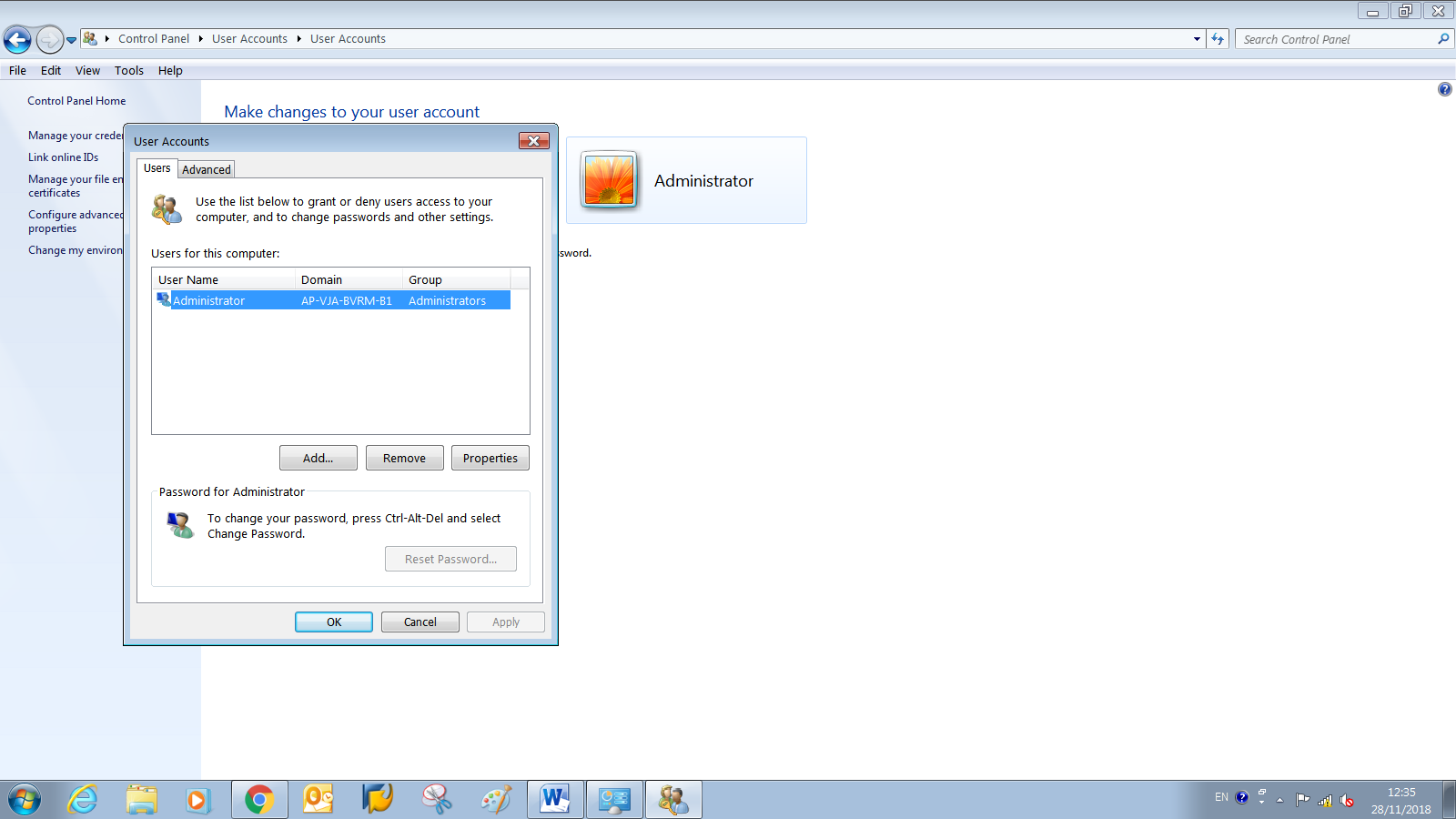


5. Enter User Name as Your CSI ID, Domain as INDIAPOST and Click on Next.


6. Select Others radio button, select Users from list and click on Finish.

7. Click on OK. 


8. Now Restart PC. Switch to other user. Enter your CSI ID as CSI_ID@IndiaPost.Gov.In, password as Password@123. It will ask you to change password. Enter new password, confirm password and click on OK. A pop up window will be opened and shown message as “Password changed successfully”. Now login with your new password.

9. Now you are login with CSI ID in Department of Posts system. This is mandatory as per security reasons. If it asks for credentials, enter username as doplocadmin, password as Password@123. For any queries, please contact me at: ashokkumar.aleti@ap.gov.in

Note: Before doing the above process, make sure that your PC is in IndiaPost domain.
Procedure to install Mantra devices for IPPB Rollout [Biometric Device Configuration]

Uncategorized
Stop following services (if any there):
1. ACPL FM220 Registered Device service
2. Morpho 

Note: Better uninstall other RD services if not required.

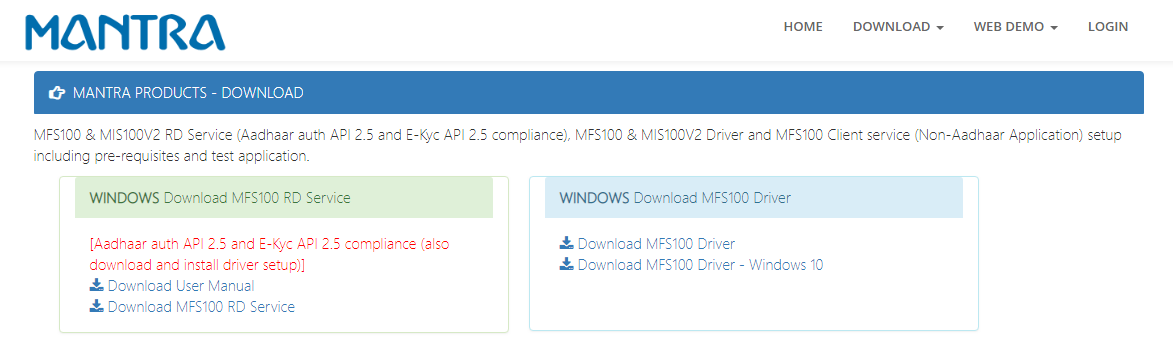
Download Drivers & RD Services:

Download required mantra drivers and RD services from its official sites.


  • Install Mantra MFS100 Driver Setup & MFS100 RD Service as per Operating System.
  • Both Setup should Run as Administrator privileges
  • Restart service in Services.MSC
  • Unplug and plug the Mantra device for ready to use
  • Then change IE settings as mentioned below

  • After IE configuration, the followings sites should be added under trusted sites

https://127.0.0.1:11100/
https://rdtest.aadhaardevice.com/
https://download.mantratecapp.com/

Once the above configuration is done, the below URL may be invoked in IE and the result of the URL is “Can’ reach this page”

https://127.0.0.1:11100/

RD Service Test Application:
1) HTTPS : https://rdtest.aadhaardevice.com/ (Test https URL if your website is in https)

  • By running RD Service Test application, user can detect all RD Services installed in their system.
  • User can get Device Information which is connected to its system by clicking on Discover ADM.
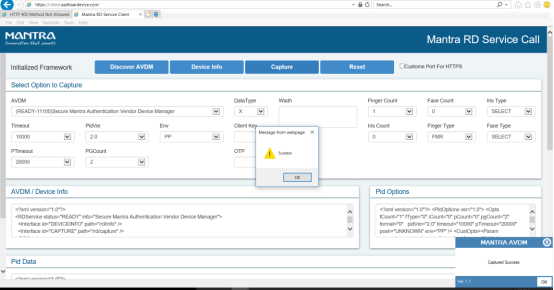
  • By calling capture function of RD service, user can capture biometric data
  • After Success Message Device is ready to capture finger print.