To print the passbook which was already printed in DOP Finacle

Uncategorized

HPBPR means passbook print reset

  1. Invoke HPBPR menu
  2. Function – RESET
  3. Enter A/C ID
  4. Enter From Date and To Date (For which the passbook has to be printed)
  5. Click on Accept
  6. Select the transactions and click on SUBMIT(F10)
  7. Verify the same in the same menu in supervisor login.
  8. Then Invoke HPBP menu
  9. Enter the A/C ID
  10. Click on Print
  11. Select Appropriate printer and again click on print.


Click on YES if the passbook was printed correctly. Otherwise, Click on NO to re-print.

How to verify account opened wrongly in Supervisor of Single Hand Post office

Uncategorized

How to verify account opened wrongly in Supervisor of Single Hand office

As you know there are huge rush and a lot of work in single hand post office. Only one person has to perform all the activity and schedule work of office. It is human tendency that any mistake may be happened in this situation


Now the situation is that one account is wrongly opened in supervisor. He try to verify the account in super but an error “The same user can not be verified this record” as like below screen shoot is coming.

CPA can’t be verify it due to non available of verification menu. In this condition the following two method are taken. We take an example of RD account wrongly opened in Supervisor.

First Method:-

First Login with CPA

Menu Shortcut – CRDOAACM (Modification Before Verification)
A/c ID –
GO

Don’t Change anything. Just click on Submit button
Now Login with Super

Menu Shortcut – CRDOAACV
A/c ID –
GO

Submit
This theory will apply to all type of account. First do modification before verification then verify.

Second Tough Method:-

  • Email to your CPA for assign temporary role of supervisor to your CPA.
  • Then verify account.
  • Request again to remove temporary role of supervisor to your CPA
  • In this process minimum 1-2 Hrs may be spend.So choose first method which is easier. This will be done at all offices where one supervisor exist.

SSA Claim Closure Procedure in DOP Finacle

Uncategorized

1.Sol Change to HO using HACXFER and Verify.

2.Unfreeze the SSA account using HAFSM and verify.

3.Run HACACCR to Check the CYI.

4.If the Account is standing at SO again SOL Change to be made to SO using HACXFER and verify.

5. Before invoking the closure menu we have to make the customer status to Deceased and enter the date of death at CIF level using the menu CMRC and verify.

6.Invoke menu HCAAC to close the account. Then enter the below details

Enter the field account ID ____
Select the Transaction Type as “Transfer”
Enter the Transaction A/c ID. “Postmaster A/c id” (SOLID+0340) because payment of claim closure should be through cheque only.

Then click on Closure tab then the system will show below screen and in the closure reason column select the reason code as “DTCLM” (This is mandatory for claim closures as the system will calculate the interest based on the closure reason code)

Verify the same using HCAAC.

Note:- 

1. After successful closure of account using the claim closure then make the CIF as Suspended by using the menu CMRC so that no one will open the accounts using the Deceased CIF.

2. Some of the users are changing the CIF status to Suspended CIF before closure of account which results in the error while closing the account hence make sure close the account and then change the CIF to suspended state,

Passbook Printer Settings and Page Setup in DOP Finacle

Uncategorized

  • Add Printer in Devices and Printers > Generic IBM Graphics 9 Pin > Select on it


  • After Select on Generic IBM Graphics 9pin wide, Click on Server properties in the top of the panel.
  • Click on Create New form, Enter the Form name like newpassbook1. Enter the Measurements of Units as
EnglishPaper size as

Width :8.20in Left : 0.20in Top:0.80in
Height :5.80in Right:0.00in Bottom:0.00in

  • Finally Click on Save Form
  • Right Click on IBM Generic 9Pin wide printer Printer 

  • Go to Advanced, select Printer Default then change the Paper Size as Newpassbook1 and Print Quality as 240×216
  • then Click on Device Settings > then select Paper Size as Newpassbook1
  • Internet Explorer 8 Or Higher Version Page SetupClick on Printer > Page Setup
  • Select all fields of Header and Footer as empty
  • Deselect Enable Shrink-to-Fit then

Margins (inches)
Left : 0.5 Rgiht : 0.5 Top: 0.8 Bottom : 0.75

  • Click on Change Font and Change Font and Style and Size

Font : Courier Font Style : Regular Size : 12 then click ok then Click on OK to Finish.

‘Applet Not initialized properly’ Error in Finacle – Solution

Uncategorized

Copy paste Below address to the address bar of a folder and press enter. If your use logins other than Local administration, replace Administrator in the following code with name of your user.

C:\Users\Administrator\AppData\LocalLow

  • Delete the folder named SUN.
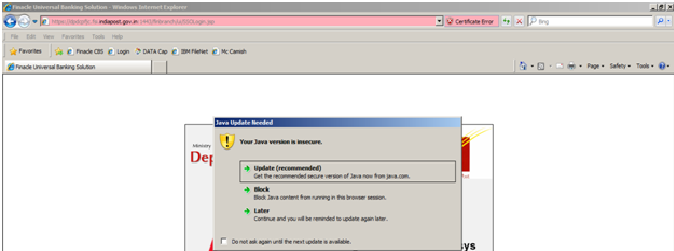
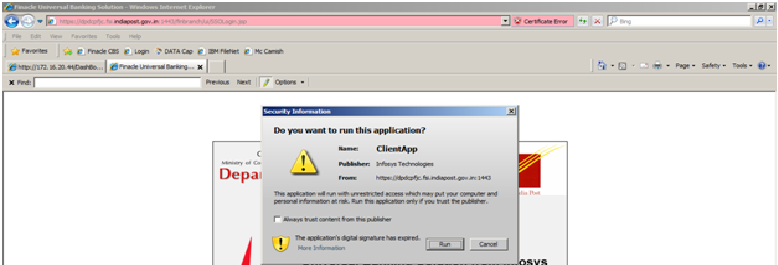
  • Now clear cache and history of internet explorer and re launch internet explorer. Patiently wait. Two three pop ups will come as shown below. Respond positively immediately.

  • Give a tick in check box and click Later


  • Give a tick and click RUN

  • Here also give a tick and click on RUN
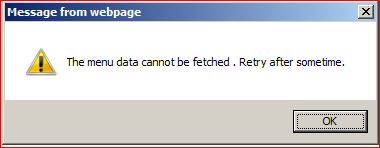
Sometimes if you response was delayed it will show Error loading applet. But no problem. Just give user id and password and login. Now when you select FINCORE, another pop up will come as shown below
  • Here also, give a tick in the check box and click RUN.
Now the issue will be resolved.

Average Balance Inquiry- HABI in DOP Finacle

Uncategorized


HABI stands for Average Balance Inquiry. This command breaks-up the accounts in months wise, Quarter wise, Half -Year wise, Year wise. The following process is being used to invoke this command.

Menu Shortcut – HABI
GO

The following screen will be displayed

Account ID – Customer A/c No
Financial Year – By Default Current you can change Previous
GO
The following screen will be opened.


  1. Now You see the Average Balance of account Monthly, move down the scroll.
  2. Average Balance of Account Quarterly, Half-Yearly, and Yearly. 

DNS Flushing technique to boost up DOP Finacle speed

Uncategorized

DNS flushing is the mechanism where the user can manually make all the entries in the cache invalid, so your computer re-fetches new combinations by now on whenever it needs and stores in local 
Enough theory, let us do some practical 
  • First click Windows+R keys in your key board.

Type the following command and press Enter: 

ipconfig /flushdns 

If the command was successful, you will see the following message: 

Now start a new session in Finacle and see the magic.It will be faster than previous session. This technique is useful in afternoon when the Finacle shows sluggish behavior.

Solution for the issue -unable to get property ‘ userMenu TreeObj " error in finacle

Uncategorized

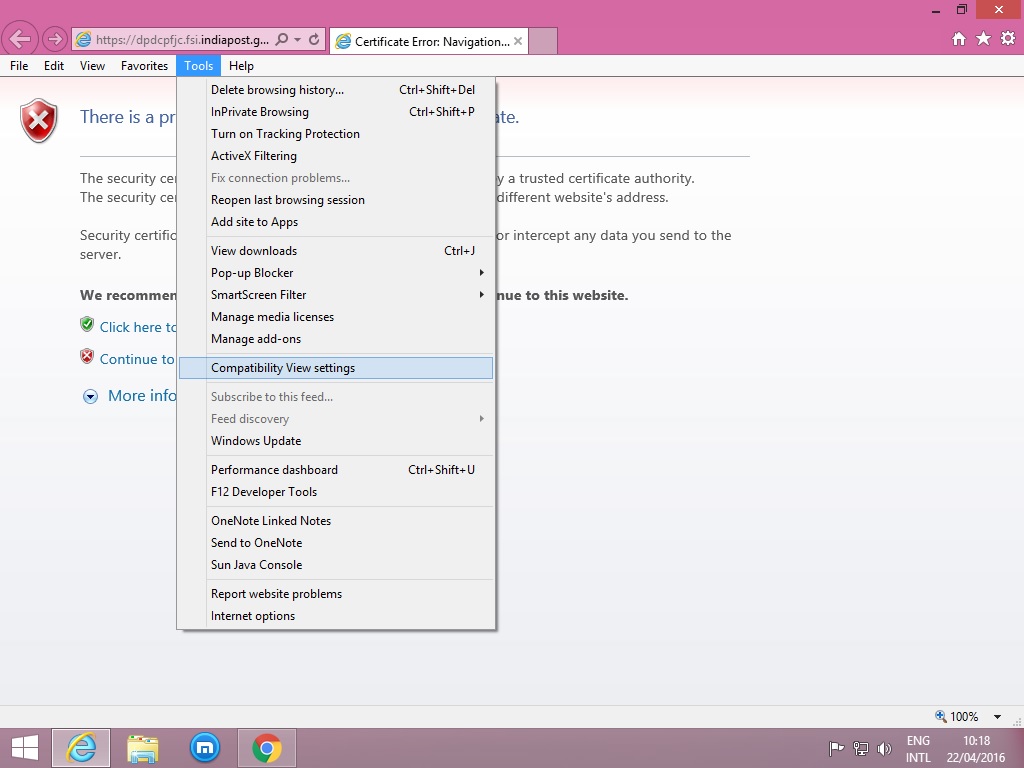
  • The error in Finacle while using in windows 8.1 PC with pre-loaded Internet Explorer 11, even after restoration brie Finacle settings. This is because of the compatibility issues with the browser.

    1. To solve this go to compatibility settings under tools in Internet Explorer and add the site indiapost.gov.in as shown in screenshot. This solves the above said problem.

    USER_MENU_ID’ is undefined error in Finacle MIS Server

    Uncategorized

    USER_MENU_ID’ is undefined error in Finacle MIS Server


    • Steps to to Clear Browsing History and Temporary Internet files
    1. Delete History in Internet Explorer 7 and Above
    2. Open the Microsoft Internet Explorer browser.
    3. Click Tools  in the upper right-hand corner.
    4. Select Internet Options from the drop-down menu.
    5. On the General tab, in the Browsing history section, click the Delete button.
    6. Check the boxes of the data you’d like to clear.
    7. Click Delete.

    Error in Closure Verification of Term Deposit (TD) Account in DOP Finacle

    Uncategorized


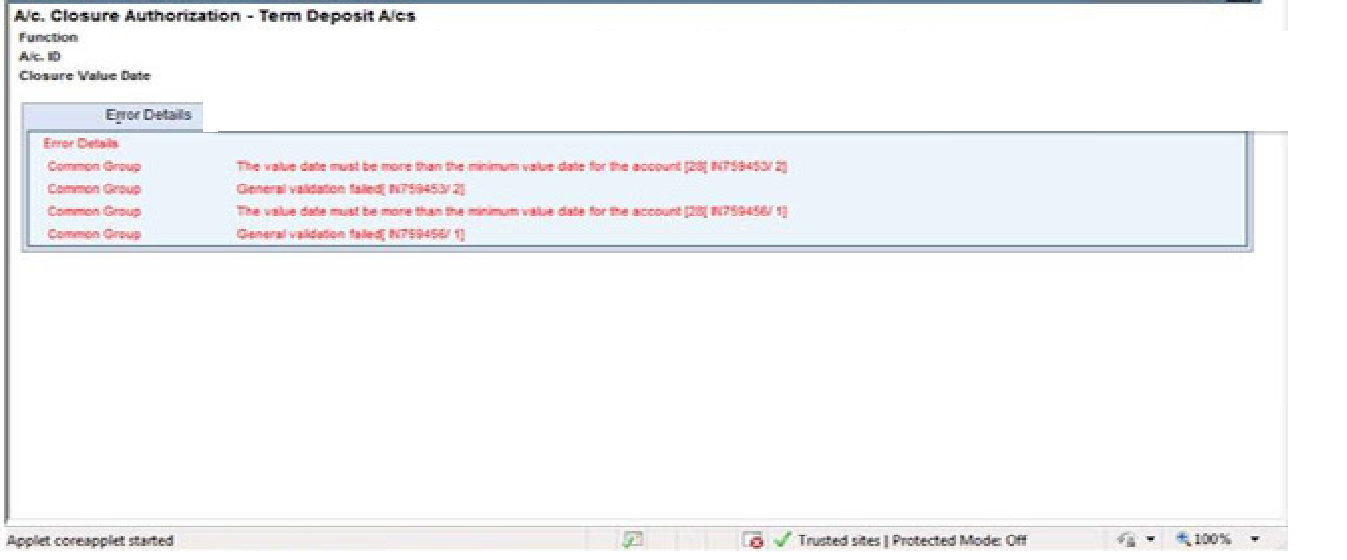
    HCAACTD command is used for close of TD Account. CPA invoked the command to proceed the closure of TD Account. The command is invoked successfully in CPA Level. Now Supervisor invoked HCAACVTD command and try to verify the TD Account but there are four types of error appear on screen. Error details are given in screen shoot.

    Error in TD Closure Verification
    Reason of Error :- As you know TD account is auto renewal at the maturity date. If we close the account after maturity date, this error appears.
    Finacle Solution :- 
    • The closure value date at the time of closing at the counter PA should be same as the current date.
    • For Ex;- If you are trying to close the account on 01/03/2017 then enter the closure value date also as 01/03/2017.
    • Then verify the closure in the supervisor, Now there is no such error.