What are the Precautions to be Taken while Using BO device?

Uncategorized
Utmost care should be given while dealing with MCD supplied to Branch Post Office.  As per company specification following are the main Do’s and Don’ts for the trouble-free operation of MCD.

 Do’s

1.   Place finger exactly on ‘Scanning Area” of finger print device.

2.   Use Power switch to turn ON and shut down machine.

3.   Every day charge Battery Minimum 5Hrs for full backup.

4.   If terminal is daily not used, terminal needs to be charged at least once in 2-3 days compulsory to arrest any battery dead issues.

5.   In switch off mode also, one can charge the battery like mobile hand set.

6.   Handle with care printer for paper roll change/paper feeding.

7.   Insert paper roll in forward direction, if paper is inserted reversely, white print out will generate.
8.   Lock the printer cabinet properly after placing paper roll.

9.   Power off unit, if unit is not in use

10.        Take Proper care for threading and nu -threading of Antenna while fixing antenna.

11.        Connect/Disconnect Pin -pad USB connector at unit switch -off condition.

12.        Use Specified/Quality paper roll for printing, as per specification.

13.        Use Specified Adapter for battery charging.

14.        Connect / Disconnect the Antenna at unit switch -off condition.

15.        Place SIM card in SIM slot when terminal is in switch off condition. SIM Slot given for 2 SIM
16.        insert option (Lower is SIM2 and Upper Slot is SIM1).

17.        Finger Print Scanner is given for biometric use, need to use carefully.

18.        For LCD touch styles to be used.

   Don ‘ts

1.   Do not use liquid or aerosol cleaners for cleaning.

2.   Do not dissemble or modify MCD terminal.

3.   Do not open battery cover of MCD terminal during operation.

4.   Do not expose the terminal to metal particles, water, dust etc.

5.   Do not yank the power cord or place anything on the power cord.

6.   Do not pull the power plug with wet hands.

7.   Do not short or tamper with battery pack gold contact tabs during handling.

8.   Do not try to charge the battery on external chargers.

9.   Do not tamper or remove any stickers on the VISIONTEK-GL11 MCD terminal, it may void
10.        the warranty on the unit and ‘weaken tamper detection.

11.        Do not connect ANTENNA after switching ON the MCD terminal.

12.        Do not remove the SIM cards in unit ON condition.

13.        Finger Print Scanner is given for biometric use, please use carefully; don’t touch with pens /
14.        metal or don’t clean with liquids etc.

15.        For LCD touch, dont use pen, Pencil or screw drivers, by using the same LCD will damage.

16.        Before using the MCD terminal, Please remove the LCD sticker.

17.        Don’t interchange the batteries. Each model uses different configuration batteries.

18.        Do not disassemble or modify the MCD unit.

19.        Do not remove battery of MCD terminal during operation.

20.        Do not expose the terminal to metal particles.

21.        Do not yank the power cord or place anything on the power cord.

22.        Never install MCD terminal in the following places:
a.   1: Exposed to direct sunlight, moist, hot or dusty
b.   2 Unstable or vibrating places
c.    3.Near flammable liquid or gas
d.   4.Near large appliances Viz. AC, Fridge etc.
e.   5.Near electric apparatus such as radios and TVs
f.     6 Near magnetic bodies such as audio speakers

23.        Do not pull power plug with wet hands.

24.        Do not short or tamper with battery pack gold contact tabs during handling.

25.        Do not try to charge the battery on other chargers.

26.        Do not expose to the rain (or) water.

27.        Do not throw the batteries into the dust bins, fire and in open areas. please dispose them in environment friendly manner.

Note: Do not tamper or remove any stickers on the MCD terminal. It may void the warranty on the unit and weaken tamper detection:

How eMO alert shows in RICT Branch Post Office Device

Uncategorized
Following image depicts how emo alert shows in RICT Brach Post Office hand held device.


As a pilot phase Department of Post has started using solar powered, biometric hand-held devices in rural post office with connectivity along with the application software in selected circles viz. Bihar, UP and Rajasthan. This move was the outcome of Rural ICT project declared by the Government of India.

Following re the important features or benefits of Hand-held device supplied to Branch Post Offices.

1. Electronic transactions- Booking and delivery of Speed Post, registered mail, money orders, sale of stamps and postal stationery will be done through these devices and paper receipt shall be generated


2. Instantaneously thereby eliminating chances of overcharging and other problems associated with manual transactions. Savings Bank deposits & withdrawals, PLI/RPLI premium deposits and loan/claim payments will also be done electronically on these devices.

3. Immediate uploading of transaction data and financial reconciliation- Using mobile connectivity, data pertaining to all transactions done on the hand-held devices shall be uploaded onto the central server. E-Money order will reach the destination post office instantaneously unlike present day where the money order is digitized at the nearest computerized Post Office and leads to delay in delivery. All financial transactions shall also be reconciled immediately without any manual intervention and Cash on Delivery amount collected in the village shall be immediately credited to the account of e-Commerce Company. Similarly the artisans would be able to fulfill e-commerce orders and receive immediate payment for their sold products online. This will have a positive impact on the overall economy of the villages.


4. Automatic track and trace- Speed Post and Registered letters/parcels and money remittances will be trackable at the Branch Post Office level and booking/delivery information will also be uploaded to central server immediately.

5. Fraud and leakage elimination- As Savings Bank and Postal Life Insurance transactions will be done on a real-time basis and through immediate generation of receipt and voice message, chances of fraud would be eliminated. Biometric authentication of MNREGS and social security beneficiaries at the time of pay-out would also reduce leakage in the schemes

6. Post Offices as Common Service Centres- Branch Post Offices shall be able to work as Common Service Centres and offer services such as Railway Reservation, online bill payment for electricity and water utilities, mobile and DTH recharge, insurance policy premium payments & transactions for partner banks/insurance companies/mutual funds etc

Procedure for changing the name in Account details

Uncategorized
1. Invoke the menu CMRC and select the function MODIFY
    a) Change the required Last name, Preferred name and short name
    b) Click on Submit

2. Verify the modified details using CMRC menu

3. The Name change done in CIF will not get effected in Account level as this CIF has already been linked.

4. Now to correct the name in account details, invoke the menu HAALM from operator
    a) Select the function MODIFY
    b) Enter the account number wherein the name change has to be done
    c) Click on GO

5. The old account details will be displayed

6. Required name to be changed in A/c Name and A/c Short name fields

7. An exception will be thrown, click on Accept

8. Verify the same using HAALM in Supervisor login

9. An exception error will be thrown. Click on Accept

10. Name has been changed successfully in the Account

Standing Instruction (Automatic) From SB to RD

Uncategorized

Standing Instruction (Automatic) From SB to RD

  • HSSIM stands for Standing Instruction Maintenance. 
  • HSSIM command is used for SI from SB to RD in DOP Finacle 
  • Note :- that for giving the standing instructions from TDA accounts(SCSS,MIS and TD) accounts to SB accounts we should not use this menu. 
  • For giving the standing instructions for TDA accounts(SCSS,MIS and TD) accounts we have to go for account modification menu and enter the interest credit account as SB account number of the customer and submit and verify in the supervisor. 
  • Menu Shortcut – HSSIM 
  • GO 
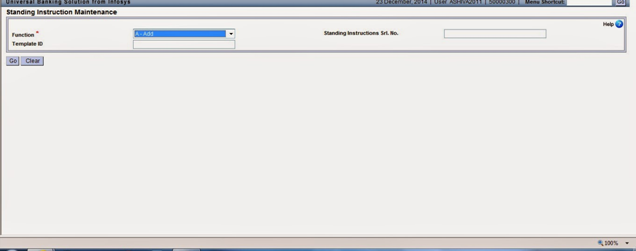
  • Function Add 
  • GO 
  • The following screen will be appeared.


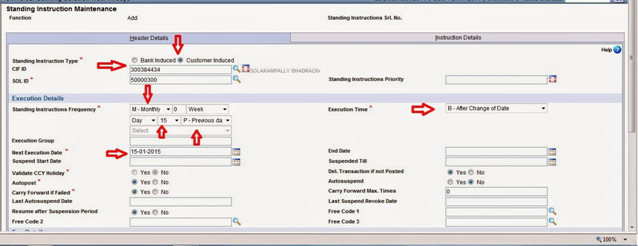
Then the system will ask to enter the following in the header details

  • Select the Standing Instruction Type as “customer induced”
  • Enter the CIF Id of the customer in the field CIF ID.
  • Select the Standing Instruction Frequency as Monthly,date and Previous day as shown
  • Select the field execution time as “B-after change of Date”
  • Enter the filed Next execution date as “give the next execution date”  as shown in the figure


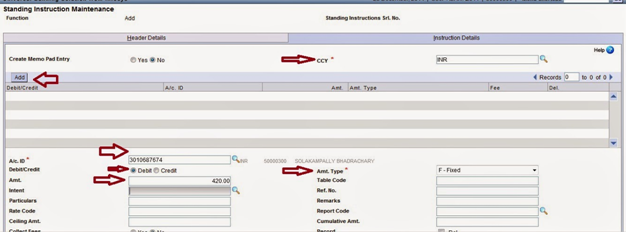
Then click on instruction details then the system will ask to enter the following

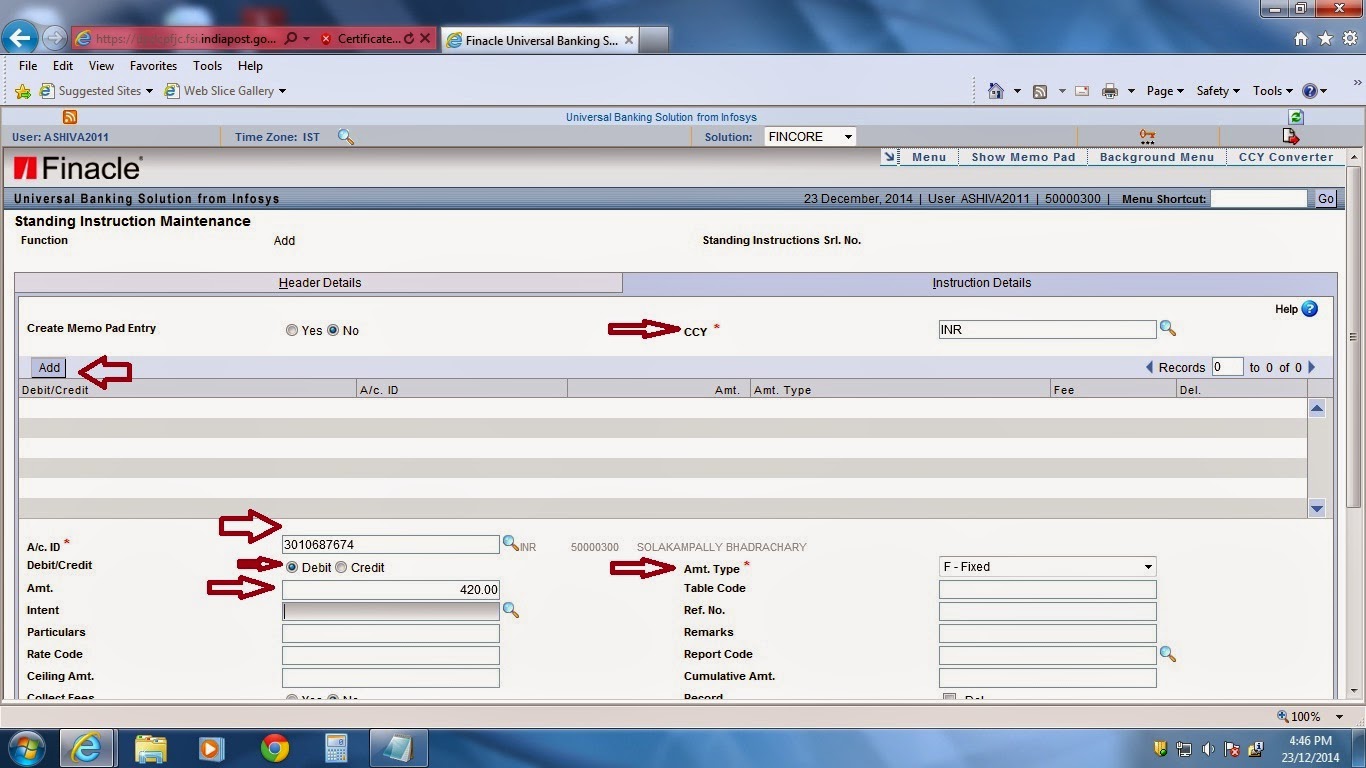
Debit Entry
  • Select the CCY filed as “INR”(Indian Rupee)
  • Enter the account id of the customer “SB account number of the customer”
  • Select the amt type field as “Fixed”
  • Select Debit/Credit field as “Debit”
  • Enter the amount field “as amount of RD amount” as shown

Then click on Add as shown then the system will ask to enter the following

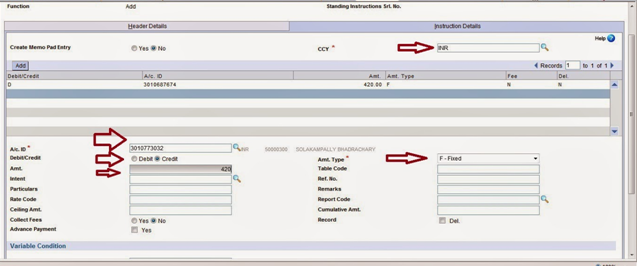
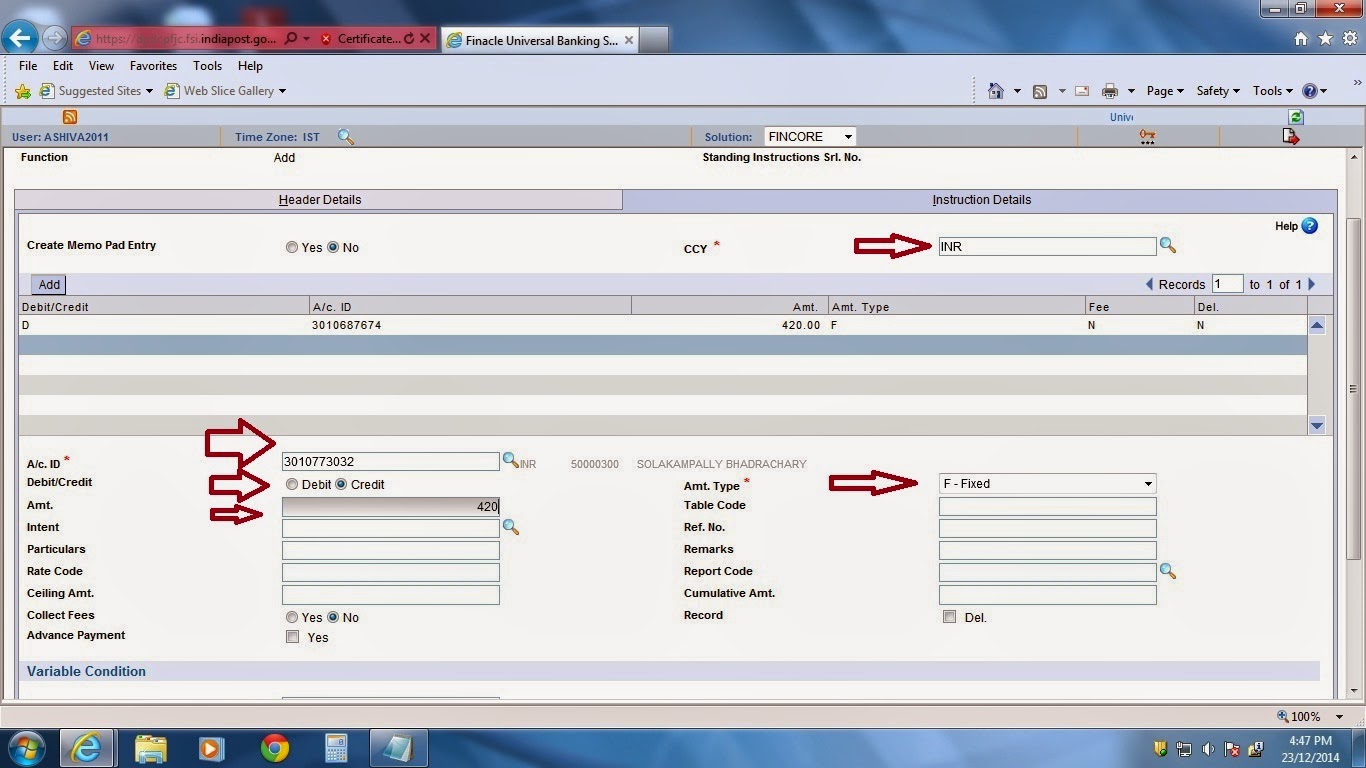
Credit Entry
  • Select the CCY filed as “INR”(Indian Rupee)
  • Enter the account id of the customer “RD account number of the customer”
  • Select the amt type field as “Fixed”
  • Select Debit/Credit field as “Credit”
  • Enter the amount field “as amount of RD amount” as shown

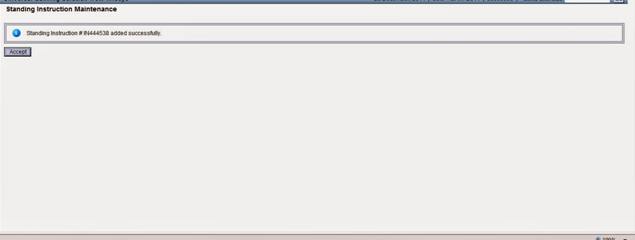
  • Then finally click on submit then the system will generate the standing instruction number as shown

  • Then note down the instruction number and verify the same in the supervisor.

Trial closure for SB and PPF accounts?

Uncategorized
There is no Trial Closure for SB and PPF. However, to see closing interest, following process is to be followed :-

Ø  It involves two components-Closing accrued Interest for completed months and balance outstanding in the account.
Ø  To know the closing accrued interest till date (for completed months) the user has to execute HACACCR menu and see the Report either in HPR or through HAITINQ menu.

HACACCR menu execution

Enter the A/c Id, wait for the name of depositor to appear. Compare name of depositor to ensure that correct account number is entered. Keep the field ‘From Date’ as blank and  Enter BOD date in the field ‘ To date’ and submit as shown in the screen shot below:

Ø  This will generate a report HPR .
Ø  The closing accrued interest will be arrived after rounding off the amount shown in HPR  to next rupee. The total amount to be paid to depositor will be arrived at by adding the balance in the account shown in HACLI/HACCBAL Menu option and the closing accrued interest.
Ø  This amount is to be shown to depositor who wants to close the account. If he agrees, actual closure has to be done.

Ø  In case SB7A is received from BO for closing sanction of a Savings Account, this amount is to be entered in SB7A by Supervisor with the remarks on the top that “This sanction is valid up to last working day of the current month” . Sending the closing sanction to BO should be avoided in the last week of the month.

RD Loan Amount Disbursement in DOP Finacle

Uncategorized

RD Loan Amount Disbursement in DOP Finacle 


In previous post, we explain how to open RD Loan account in Finacle. You must read RD Loan Account Opening before disbursement. Please click & Read First 


RD Loan Amount Disbursement Procedure

After opening the RD Loan Account we have to disburse Loan Amount. LARDD command is used for this purpose. The following procedure of disbursement of RD Loan Amount.
  • Menu Shortcut – LARDD
  • GO
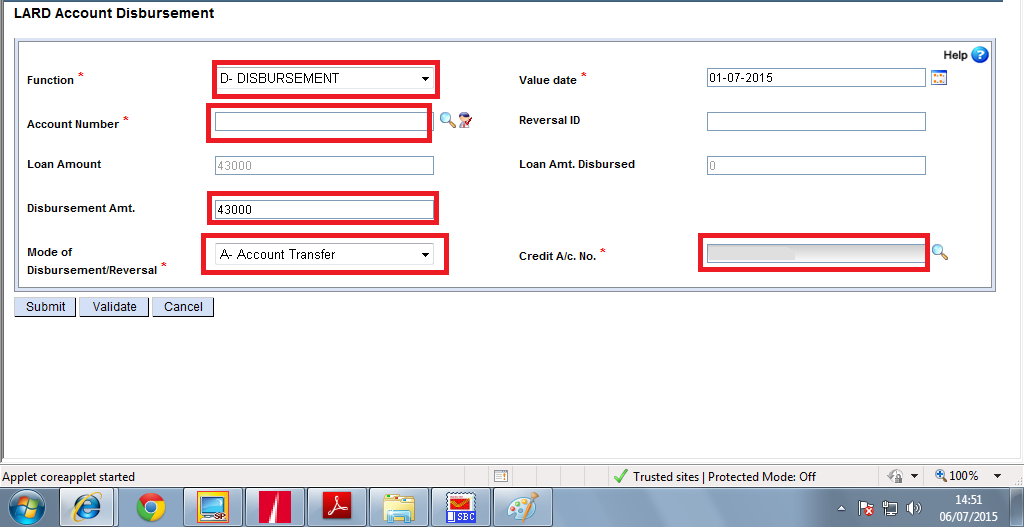
  • The following screen will be displayed. Click and See


  • Function – D-Disursement
  • Account No. –
  • Disbursement Amount –
  • Mode of Disbursement – Transfer
  • Credit A/c No.- SB Account or SOL ID + 0340
  • Submit
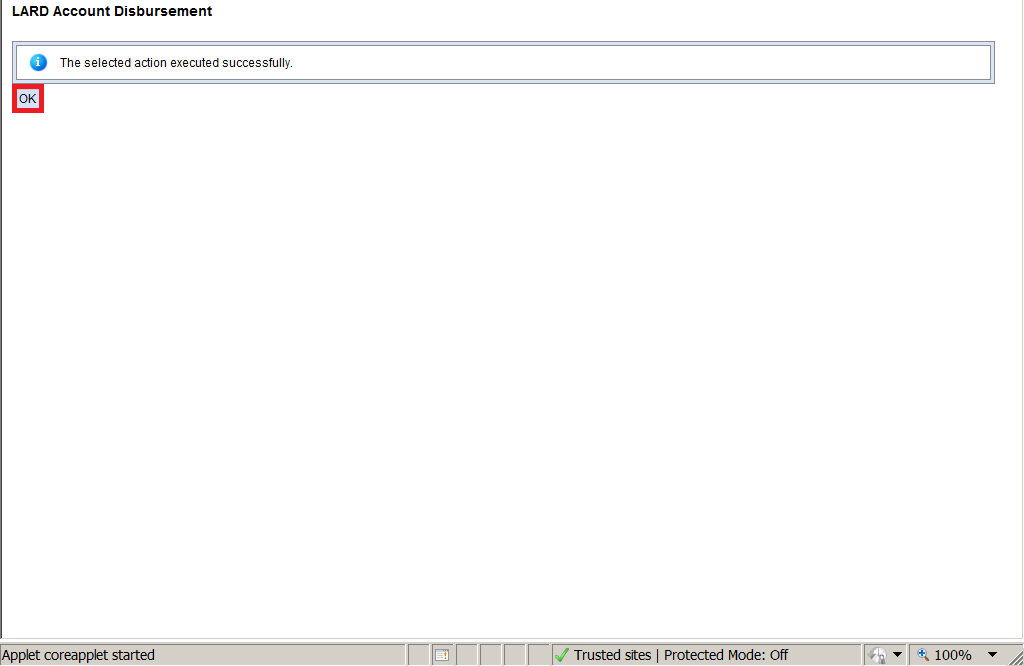
  • The following screen will be displayed
  • Now the verification will be done by supervisor in same command LARDD.
  • Menu Shortcut – LARDD
  • GO
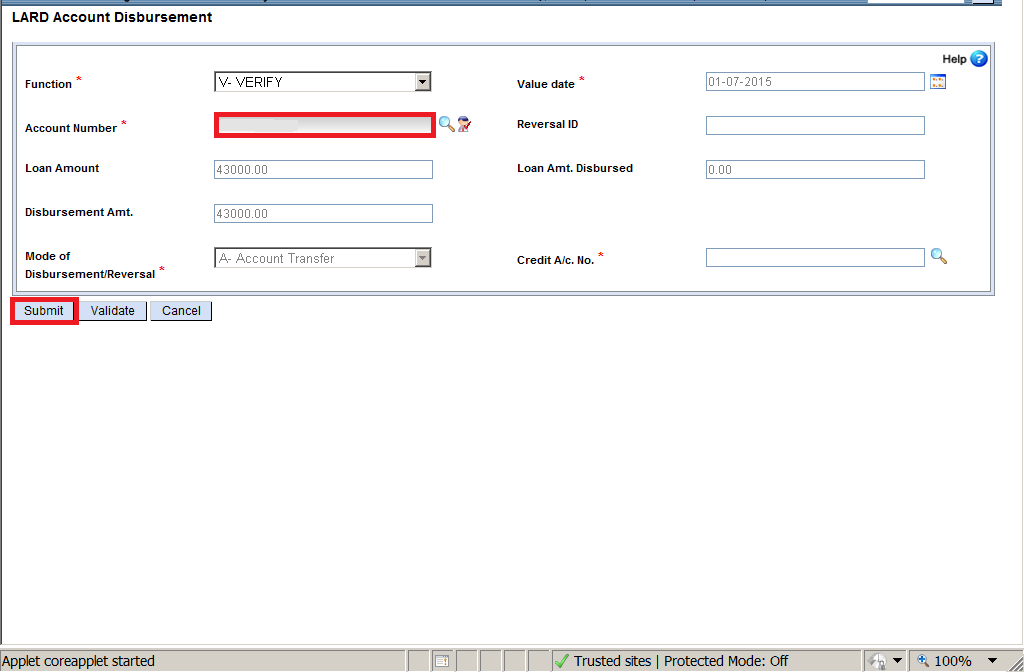
  • The following screen will be displayed

  • Function – Verify 
  • Account No. 
  • Submit 
  • The following screen will be displayed.
  • Now check the Loan Account Balance In HACLI
  • You can also check the Loan Marking of RD account in HACCBAL.

How to Find Account Number using Cheque Number in DOP Finacle ?

Uncategorized
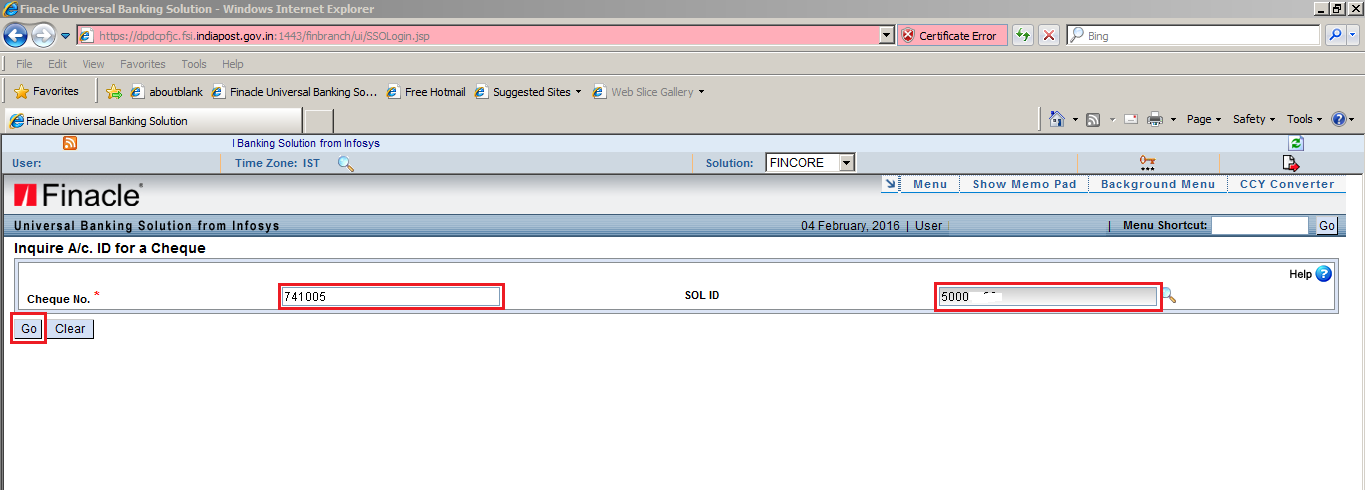
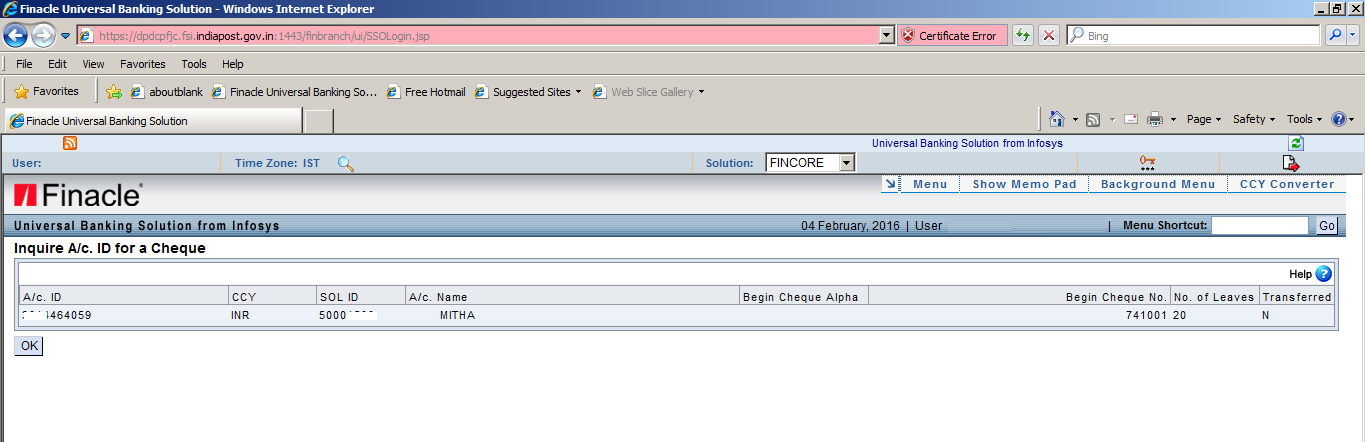
The following are the steps to be followed to find an account number using cheque number. The menu option we use for this purpose is HINQACHQ. This menu option is available for Supervisors only.
  • Invoke menu option HINQACHQ (RUN ONLY IN SUPERVISOR)
  • Cheque No : Enter Cheque number
  • SOL ID : Enter Sol Id or Keep it blank
  • Click Go
Find Account Number 1

You will get a screen as shown below where you can find the account number and name of the customer.

Find Account Number 2

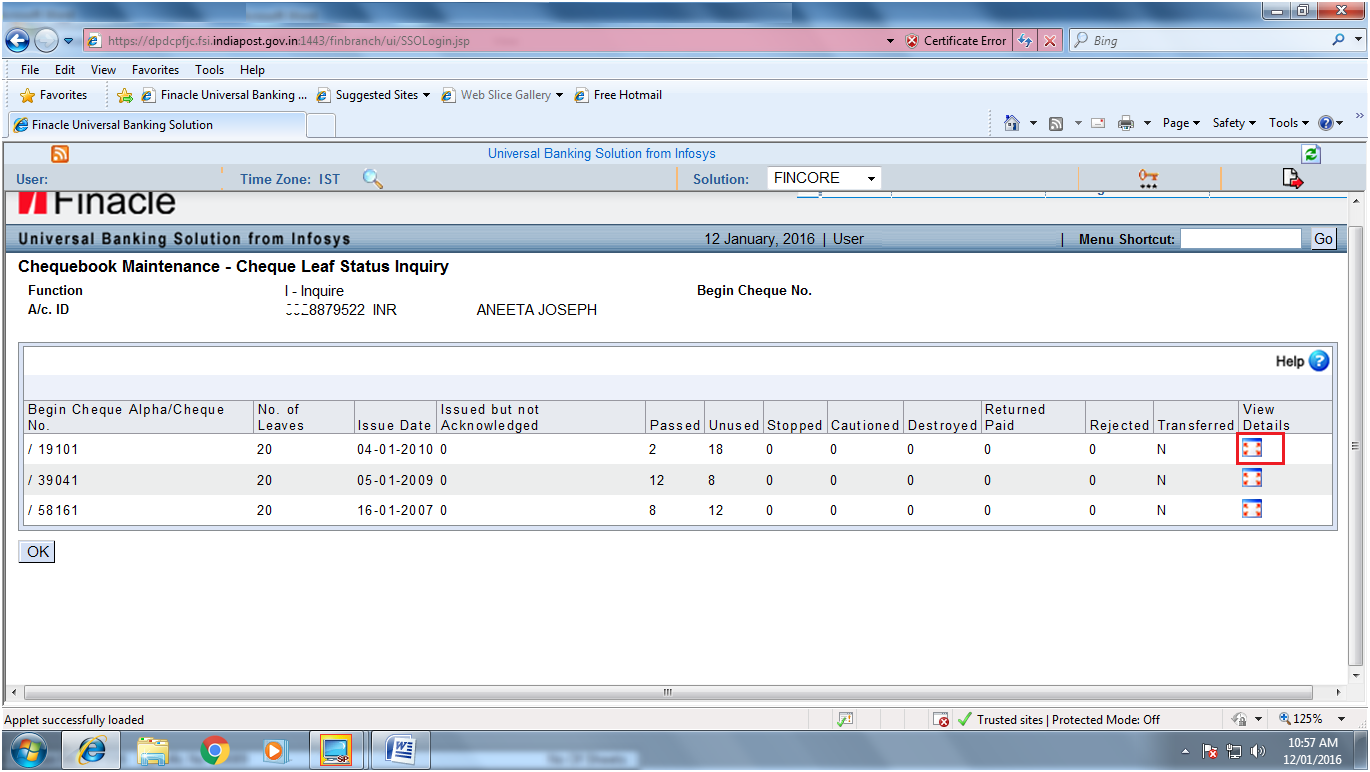
How to find whether a Cheque Book is issued to an Account ?

Uncategorized
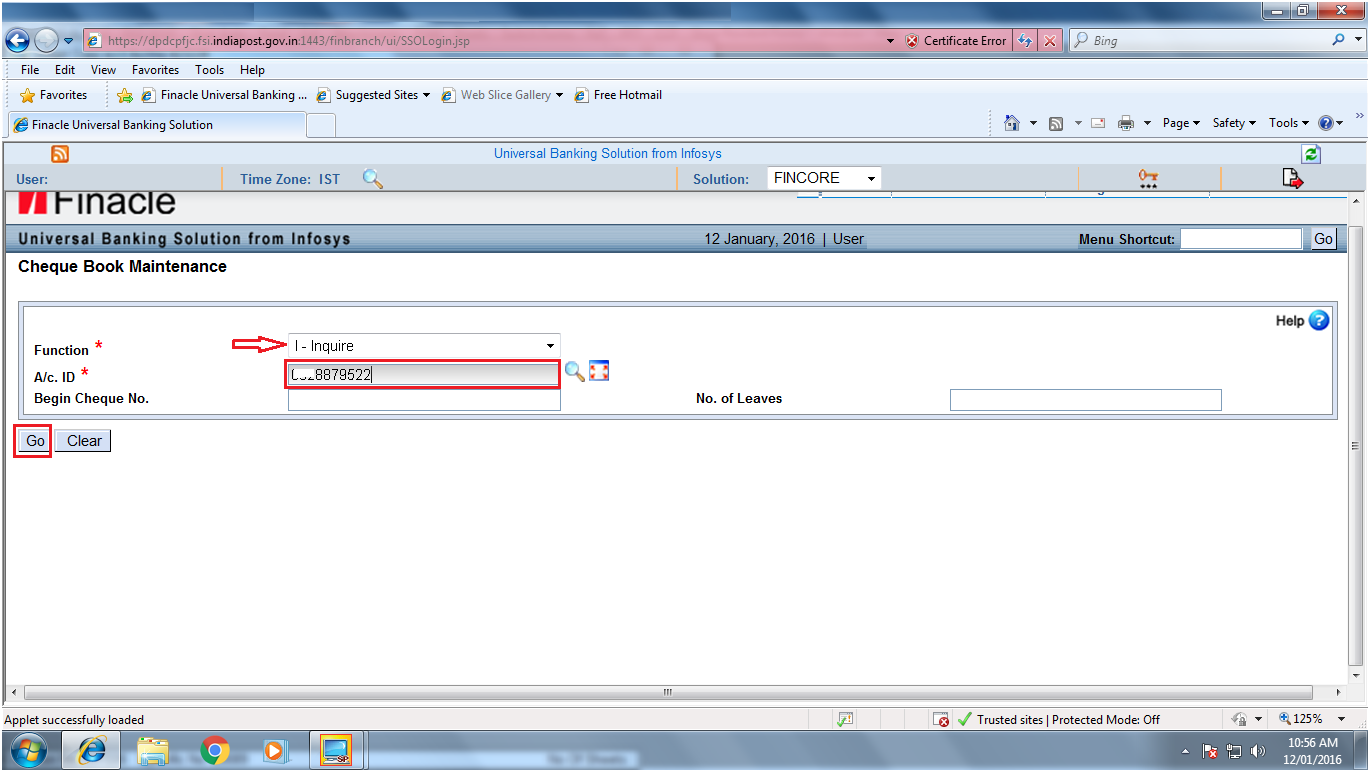
The following are the steps to be followed to know whether a cheque book is issued to an account or not

  • Invoke menu option HCHBM 
  • Function : Inquiry
  • A/c ID : SB Account number
  • Click Go
Check Book Maintenance 1

You will get a screen as shown below where you can find all the cheques books issued to this account.

Check Book Maintenance 2

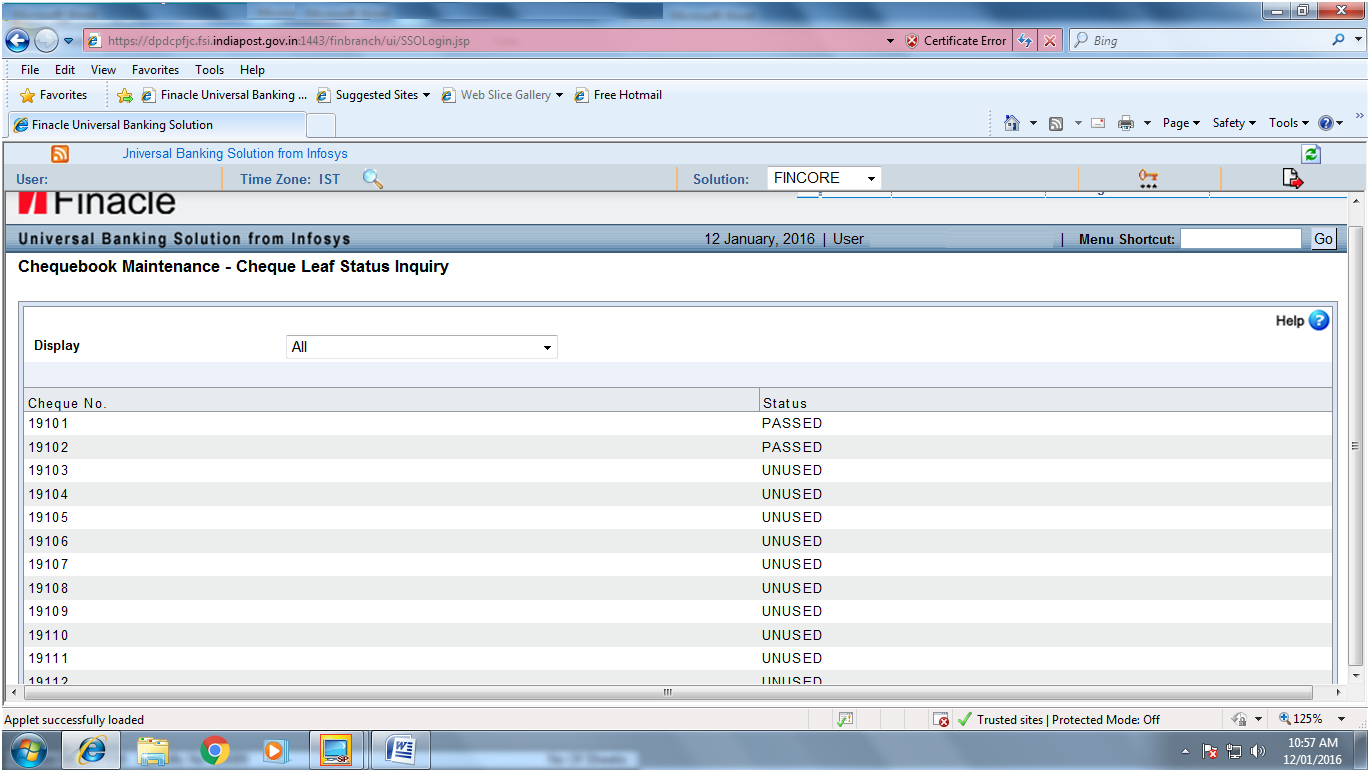
How to find whether a particular cheque in the given cheque book series is passed or not ?

  • Click View Details button as shown in the above screen
You will get the status of each cheque in the selected cheque book series as shown below

Check Book Maintenance 3

Procedure to Issue Instant ATM Card in DOP Finacle-CCMM

Uncategorized
Before issuing ATM cards kindly ensure the following conditions are fulfilled.

1. Minimum balance in account should be Rs. 500/-
2. Cif should be updated with the latest KYC documents.
3. Update mobile number and email id if possible as message alert service is available.
4. There must not be any special characters and numbers in the account name. If any modify the CIF id in CMRC and account name in HAALM. Only supervisor can access this command. One supervisor has to modify the name and another supervisor has to verify the same.
  
Procedure to follow by counter clerk

Menu: CCMM

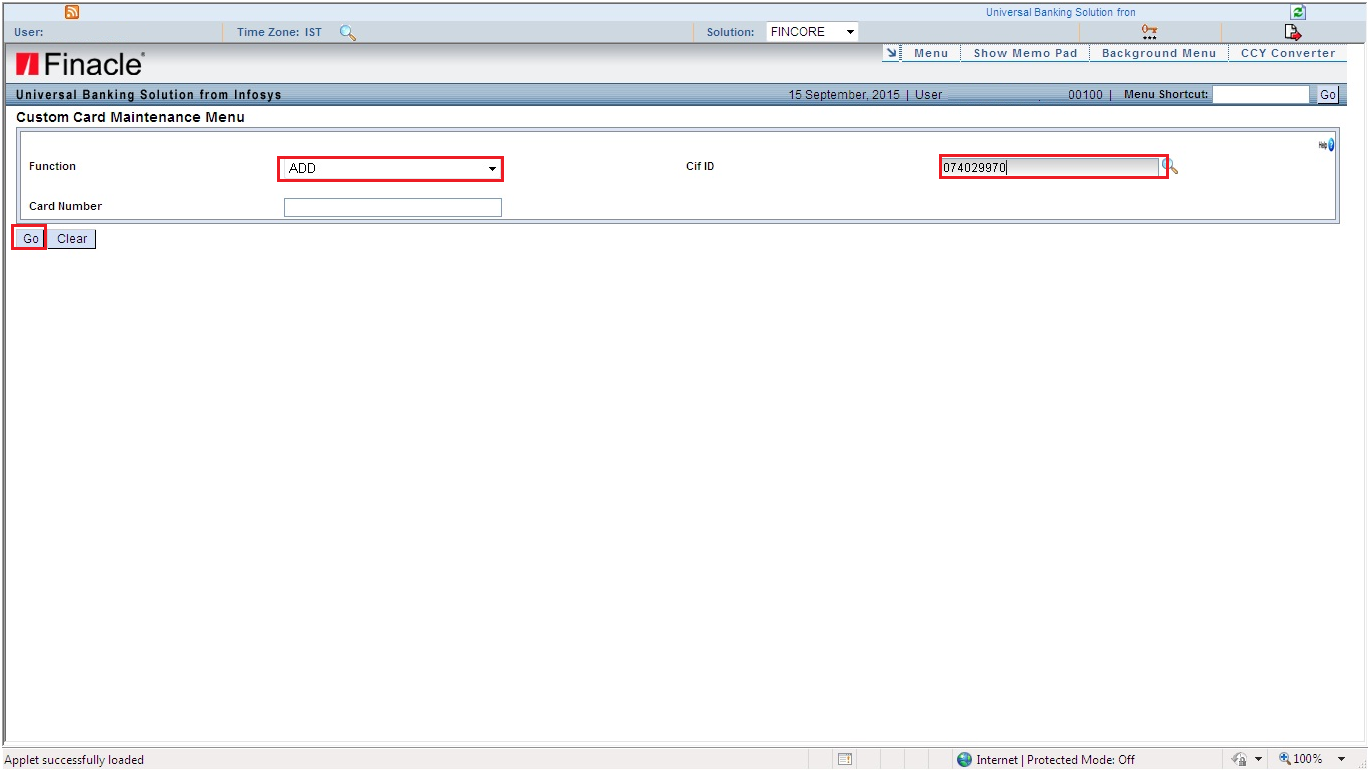
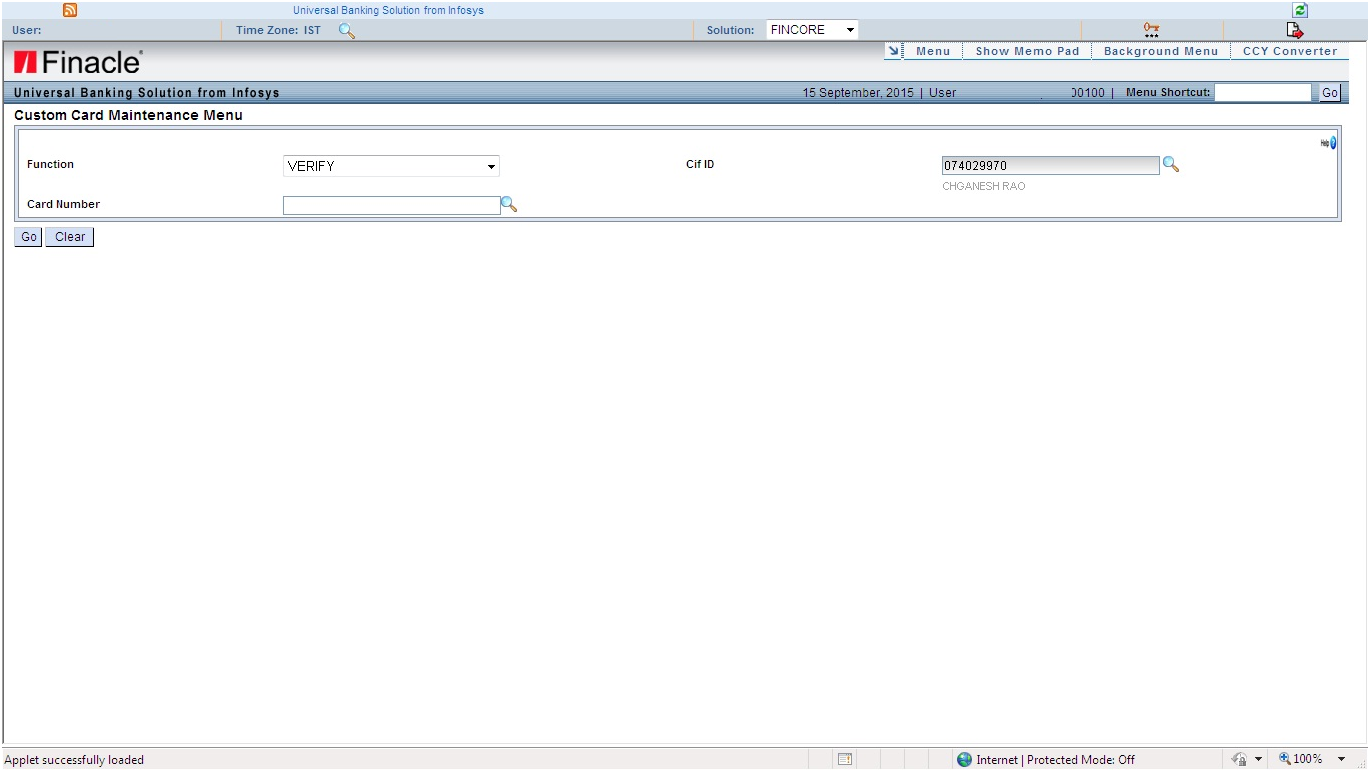
Enter CCMM command in command box. Following screen will be displayed

1.   Select Add in Function menu and enter cif id of the customer and click on GO

Finacle ATM 1


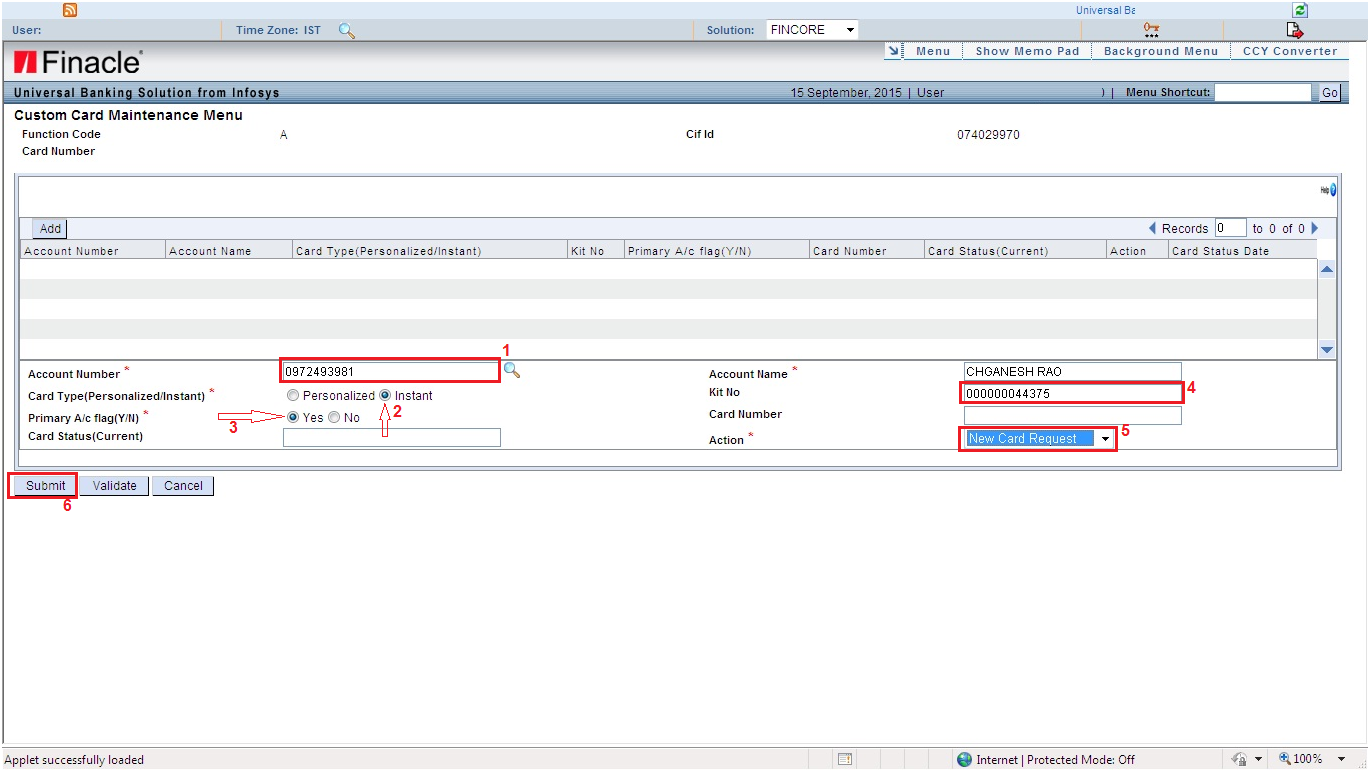
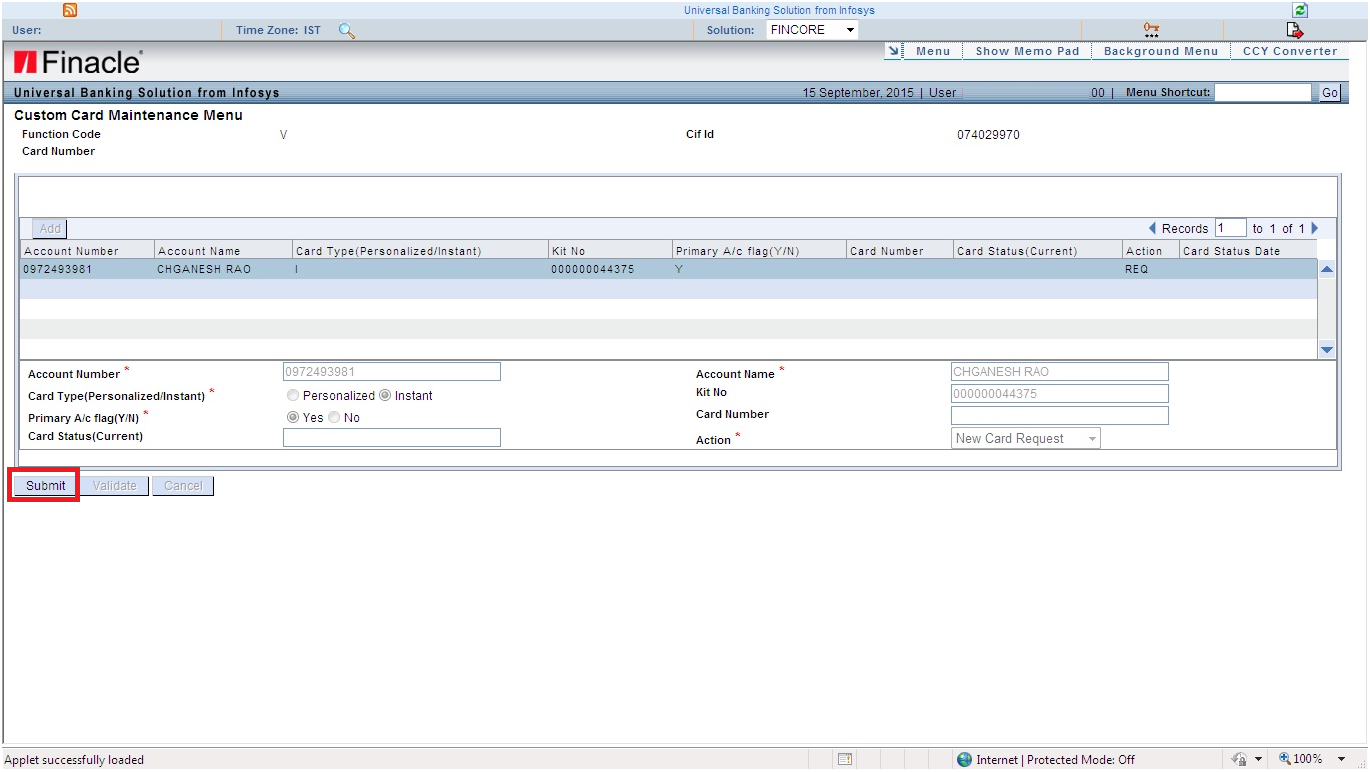
2.   Account Number : Account number. Name will be fetched automatically.
Card type : Instant
Primary Account Flag : YES
Kit No : Enter the KIT number which is available on the ATM card envelope.
Action : New Card Request
And Click Submit

Finacle ATM 2


3.   You will get the message “The record is added successfully”

Procedure to follow by Supervisor
1.   Menu: CCMM
Select Function: Verify
Enter CIF id and then click on GO

Finacle ATM 3


2.   The following screen will be displayed. All the details will be fetched automatically. Check all the details available on the screen and ensure they are correct.
Then click on Submit and it will show a message “Record verified successfully”.

Finacle ATM 4


These requests will be downloaded and processed by Bangalore CPC at once and cards will be active by next day morning.

Part Withdrawal from a PPF Account in DOP Finacle-CPWTM

Uncategorized
Important Points :
  • Partial amount could be withdrawn from an account after the completion of fifth Financial years, the balance at the credit at the end of the 4th year immediately preceding the year in which the 50% of the amount can be withdrawn
  • The withdrawal amount should not exceed 50% of the balance that stood to his credit at the end of the fourth year immediately preceding the year of withdrawal or at the end of the preceding year, whichever is lower.
  • However, in the case of extended deposit, the withdrawal amount should not exceed 60% of the balance at the beginning of the extended period.
  • Outstanding balance of loan – against the PPF – will be deducted from the withdrawal amount.
  • Only one withdrawal is allowed in a year.

Ø  Invoke Menu CPWTM for part withdrawal of PPF account

   Now provide all the details as mentioned below :

1.   Function Code : Add
2.   Tran Type : 
    (i) C/NP-Cash Normal Payment [for Cash Payment]  OR
    (ii) T/CI-Customer Transfer [for Cheque payment or Transfer to POSB Account]
3.   Type : N-Normal Withdrawal
4.   Click Go


1.   Account Number (Dr) : PPF account number
2.   Amount : ___________ [ Finacle displays Max Withdrawal Amount ]
3.   Account Number (Cr) : 
      (i) POSB account number in case of transfer to SB account OR
      (ii) SOLID + 0340 in case of cheque payment.
4.   Click Submit


Note down the Tran ID and get it verified by the supervisor in menu option CPWTM.